| Steps | Screenshots |
| Once logged in, go to the ‘Manage’ link at the top of the FBR main screen. |
 |
| Select ‘Lookup’ from the Actions Menu |
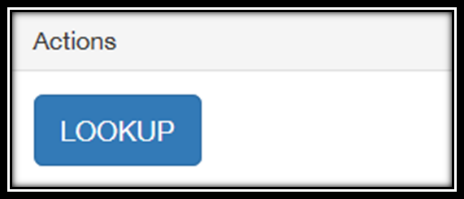
|
| Scan a BOCA ticket or Epson receipt, or manually enter an order number and then hit enter. |  |
| Find the General Admission you wish to upgrade and select the ‘Actions’ button. |
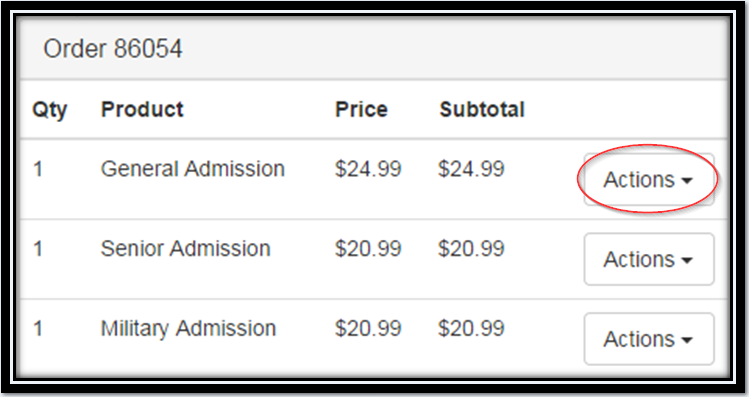
|
| Select ‘Upgrade’ from the options. |
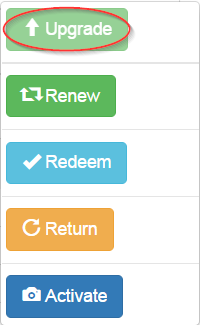
|
| Select the type of Annual Pass the customer would like and hit ‘Upgrade’. |
|
| Fill in the customer’s name and address information and hit ‘Enter’. | 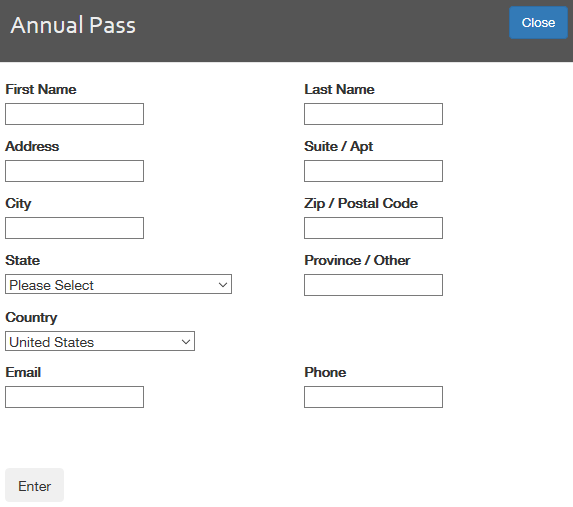 |
| A message will indicate the upgrade has been completed. | 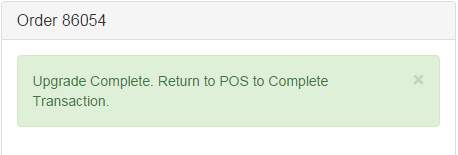 |
| Click ‘Return to POS’ at the top of the screen. |

|
| In the cart you will see the AP, minus the GA amount already paid. | 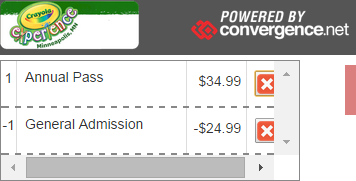 |
| You may now add other items, if desired, and process the payment like any other transaction. | |
| After the payment is complete, select ‘Activate Card.’ |

|
A small window opens with the new members you can activate from that order.
Select the membership ID you wish to print. | 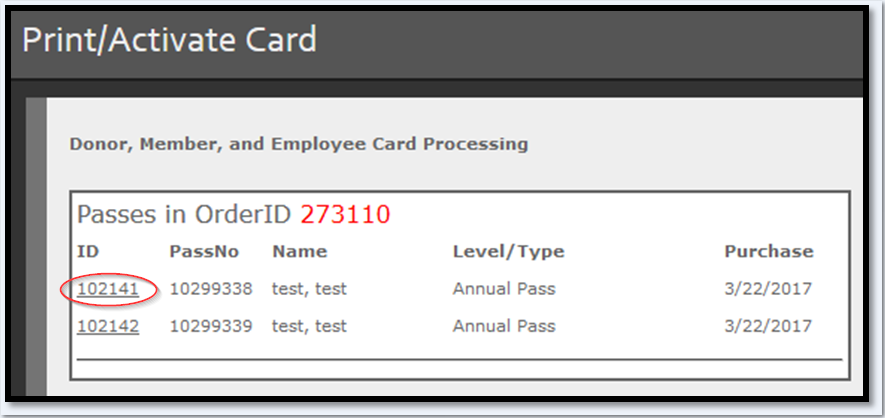 |
| The selected member will appear in a highlighted row. |  |
Scroll down to ‘Start Webcam’ and take the member photo.
If the photo is acceptable, click ‘Choose File’ and then ‘Print Card’.
A member card will print on the DataCard printer. | 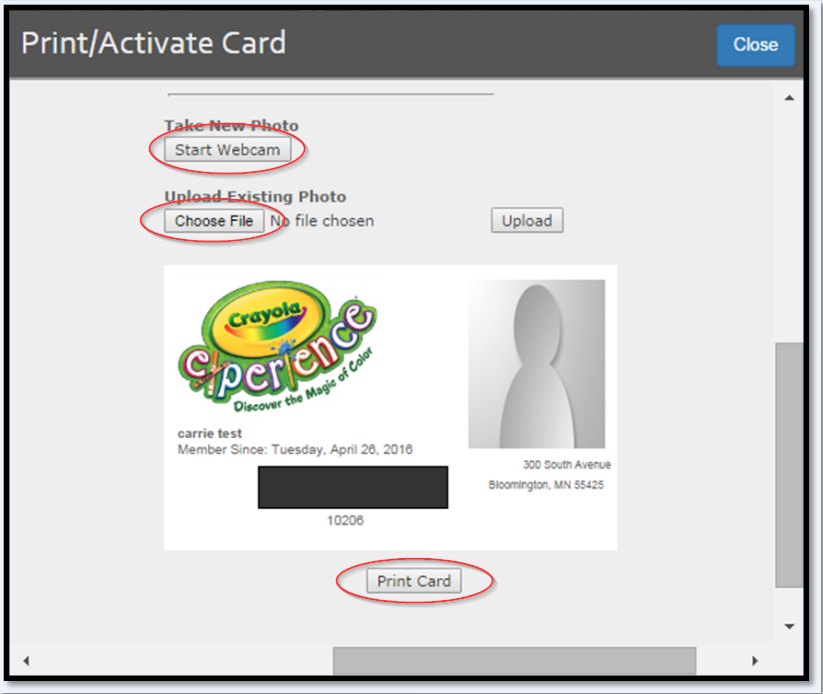 |


