This article will explain how to remove an entire line item and then issue a partial refund for an online order.
Note: For partial refunds due to reducing ticket quantity or changing the ticket price, cancelling and refunding the entire order, or for refunds on FBR, please see respective articles.
| Steps | Screenshots |
From time to time, a customer may want to change their order by reducing the number of tickets purchased or they may require a partial refund for a promotional or customer service related matter. Partial refunds should be issued any time a ticket(s) is removed, the ticket quantity is reduced or the price of a ticket(s) requires updating.
This article covers line item removal and how to handle the corresponding partial refund.
From the order details page, first update the ticket information.
|
To remove a line item (eg. a customer purchased two adult, two child and two senior tickets and wants a refund for the two senior tickets), select the remove button.
| 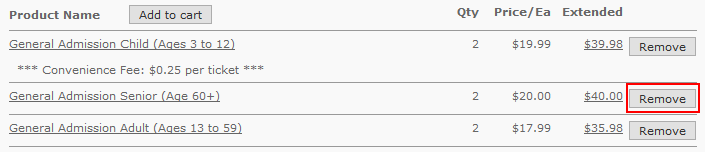 |
Select OK at the prompt.
|  |
| You will see that the number of barcodes has been reduced by two. | 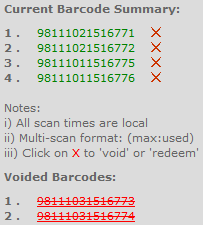 |
| You will also note that the order total has been updated and the amount owed back to the customer shows as a negative balance due. | 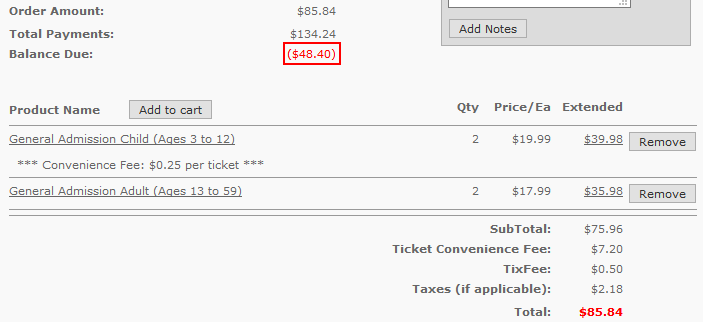 |
| To refund the customer, first go to make payment. | 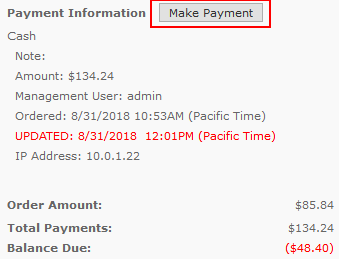 |
Select Payment Type: Refund (decreases payment total).
Select Refund Type: cash (as this was the original payment type in our example).
Note: While refunding to the same type is generally best, there may be special scenarios in which you want to refund to a different payment type (i.e. refund a credit card payment with cash). Examples may be a credit card that has been lost or stolen or refunds past your gateway’s time limit.
Enter the amount due (see balance due below).
Hit submit | 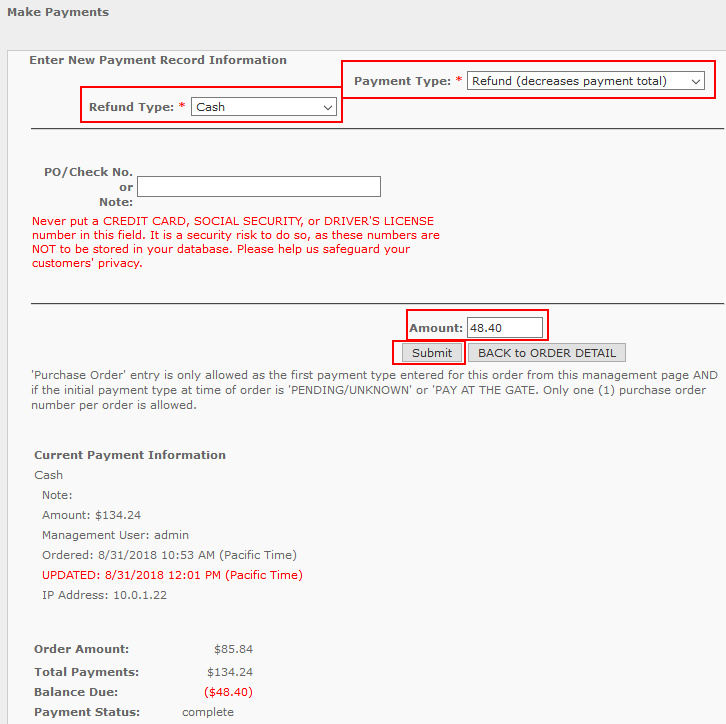 |
| Select OK at the prompt. |  |
You will see that the refund has been applied and the balance due is now $0.
Note: If you wish to send the purchaser an email indicating this refund has been made, you may select the notify email button and then select yes at the prompt. | 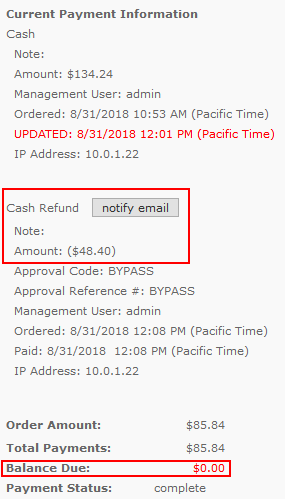 |
| Select Back to Order Detail |  |
| You can now see that an Order Note indicates the change in tickets and the refund has been completed. | 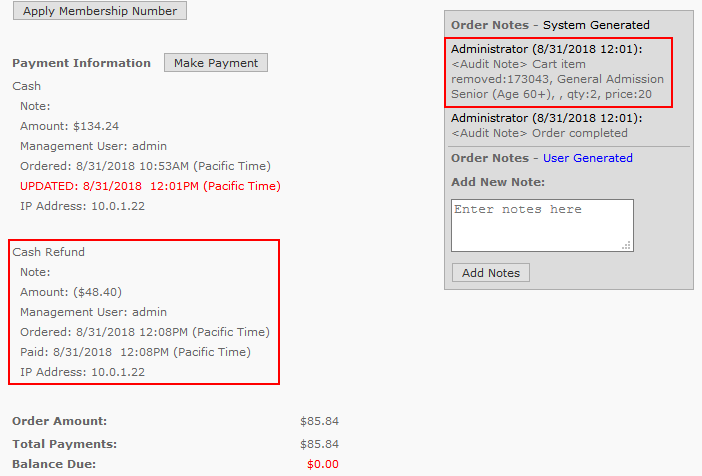 |
| You may now communicate to the customer which ticket’s barcodes have been voided, or you can re-send the ticket packet to the customer via email. | 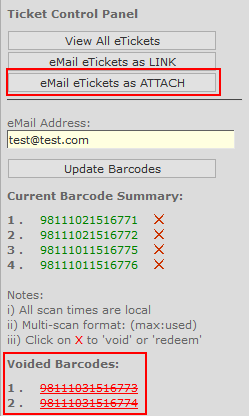 |


