| Steps |
| A guest who has an account can access his account information by clicking on the Customer Login on the top Right hand corner of the main store page. | 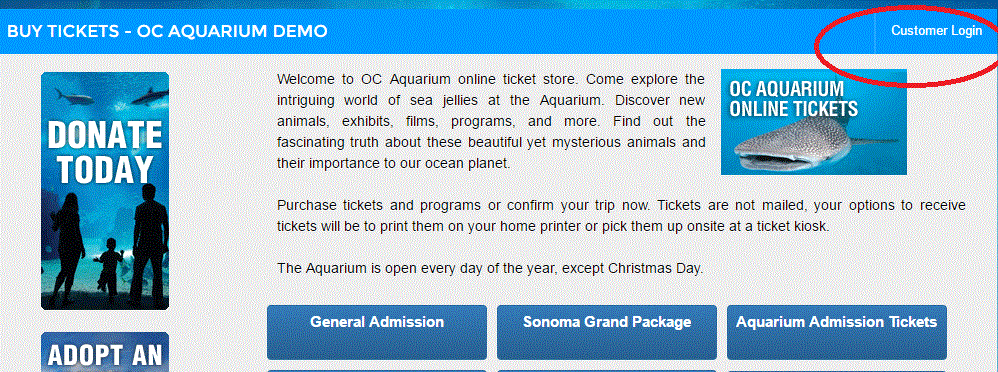
|
If they do not have an account and want to create an account they can click the same “customer Login” as well. (Please see our Article on how to create a household/customer account from the Mainstore page)
|
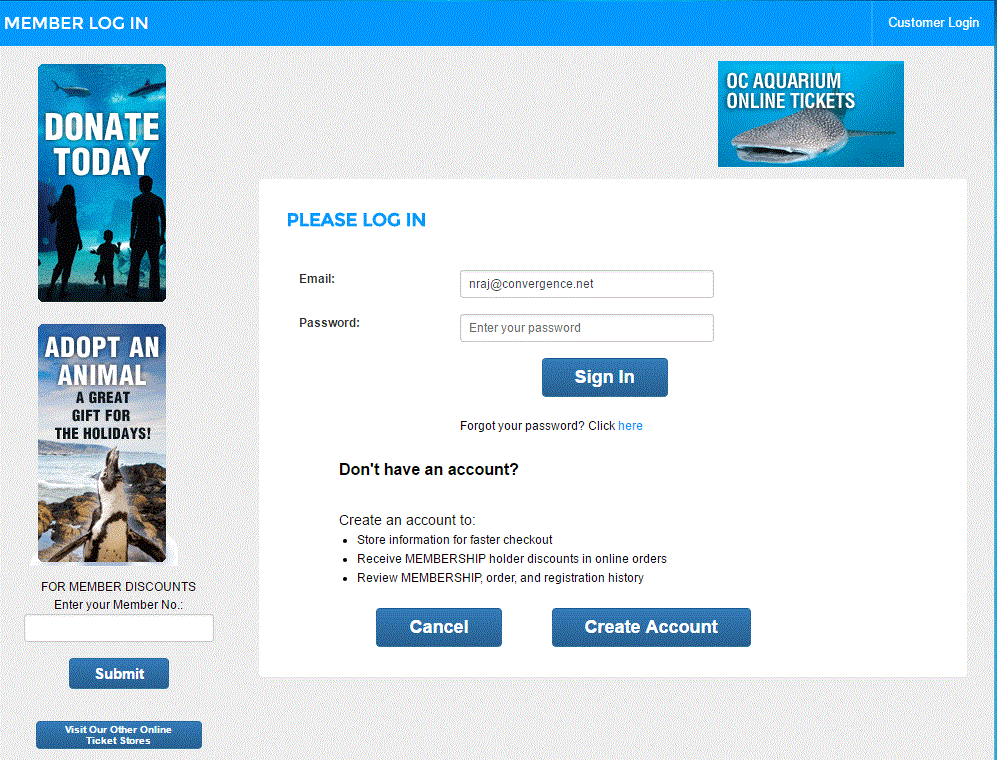
Clicking on the Customer Login will take the guest to the Log in Page
|
Here the guest can either go directly to his account by giving his email and password OR Create an account by clicking the “Create Account” button.
|  |
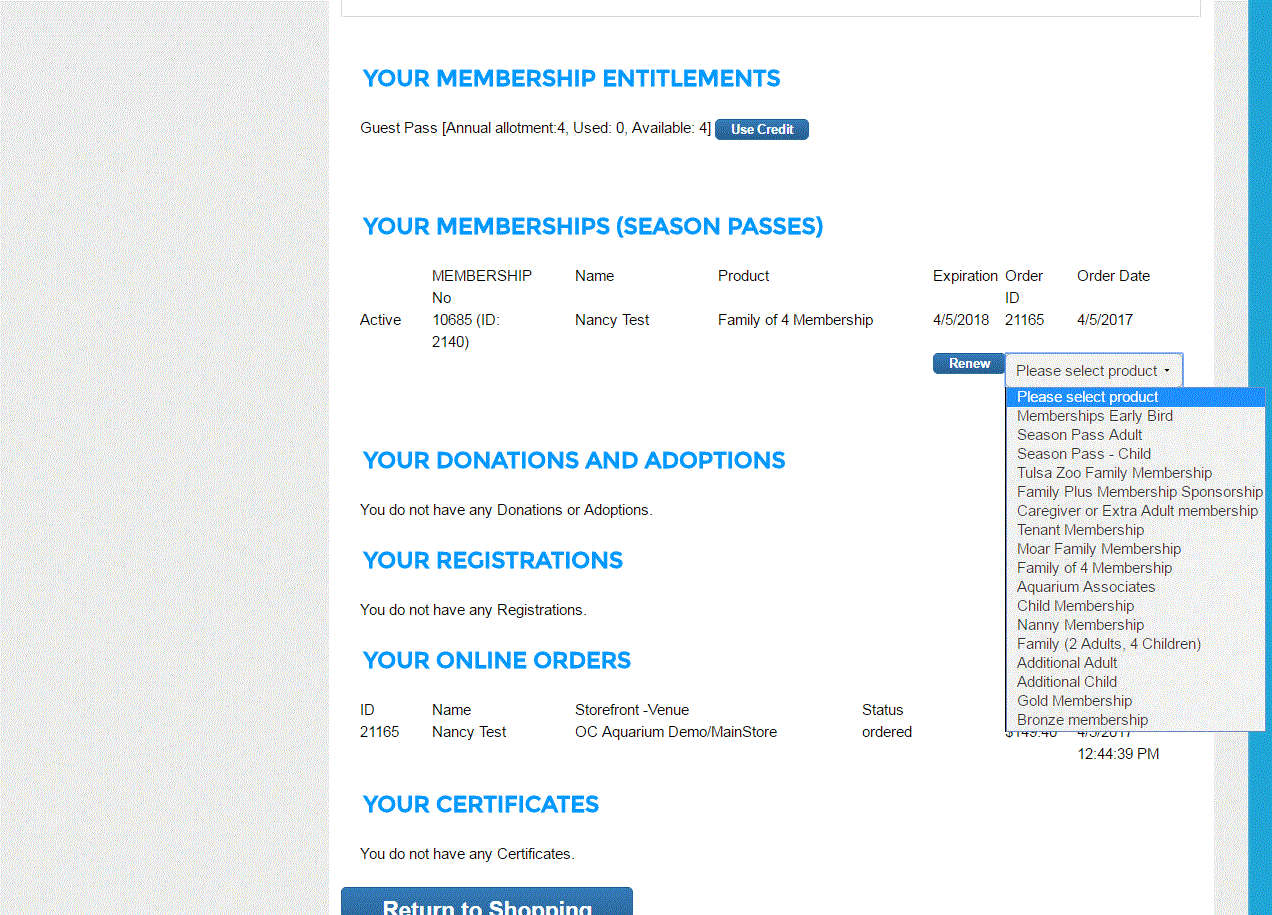
The account holder information page. On this page the account holder see all his contact information as well as his membership information
|
Guest may update contact information or add household member information to the account as well
|
When a guest wants to renew a membership they need to click the drop down near the Renew button and choose the type of membership/ season pass they would like to renew to.
| 
|
A guest need not choose the same membership type that they are renewing, they can always decide to upgrade to a different type of membership if they so wish.
|
Once the selection has been made by the guest they click the “Renew” button.
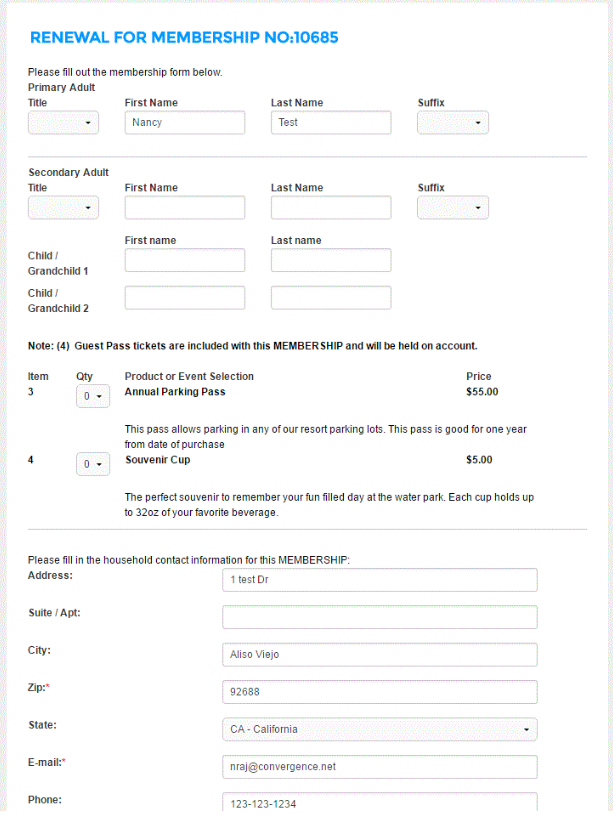
This will take them to the Membership type that you selected to the Renewal page that will help you through in completing you renewal transaction.
| 
|
From here on the guest completes the transaction just like any other online purchase would be made and receive an eTicket.
|


